Spend on facts, not feelings.
Your bank says $4,000. Rent, insurance, and groceries are already waiting on it. Bucket My Money shows, at a glance, what’s actually free to spend.
No bank link needed to start. Add a balance by hand.
- Read-only bank access
- Credit cards included
- Solo or household
It can only look
Bank access is read-only, and you connect through SimpleFIN, so your bank login never touches us. Buckets are labels; moving money between them never touches your bank.
Private where it counts
Kids see only their own money, enforced by the database, not hidden on screen. Every household is walled off from every other. No ads, no trackers, and your data is never sold.
The number is just math
Unbucketed is your cash, minus card balances, minus what’s in your buckets. Plain arithmetic on your real balances. No projections, no guesses.
$4,000 in the bank isn’t $4,000 to spend.
Your bank shows what you have. It can’t show what’s already promised. Bucket My Money subtracts the promises, so the number you see is the number that’s yours.
- Rent, due Friday−$1,800
- Car insurance, auto-drafting−$220
- Groceries this week−$450
Your money lives in two places.
Unbucketed
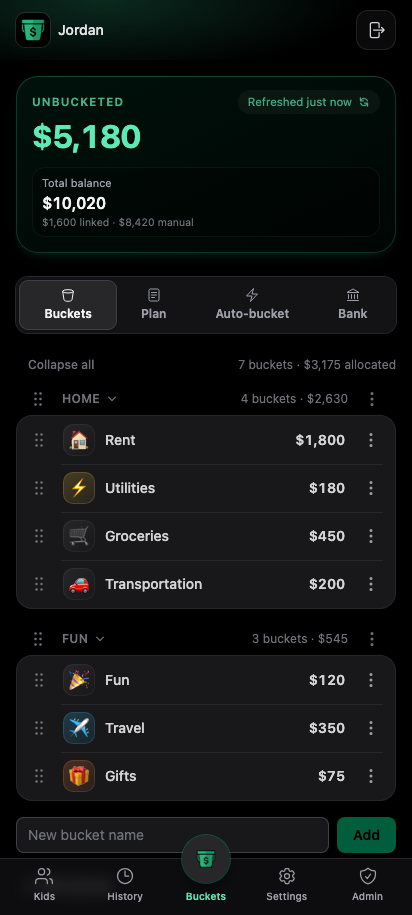
The running balance. Paychecks land here; bills and card charges come out of it. It’s the honest answer to “can I afford this?”
Unbucketed
$5,180
of $10,020 total
Buckets
Money you’ve set aside on purpose: vacation, car repairs, Christmas, whatever matters to you. Fill them by hand or on a schedule. Once it’s in a bucket, it has a job.
- Rent$1,800
- Groceries$450
- Travel$350
One habit. That’s it.
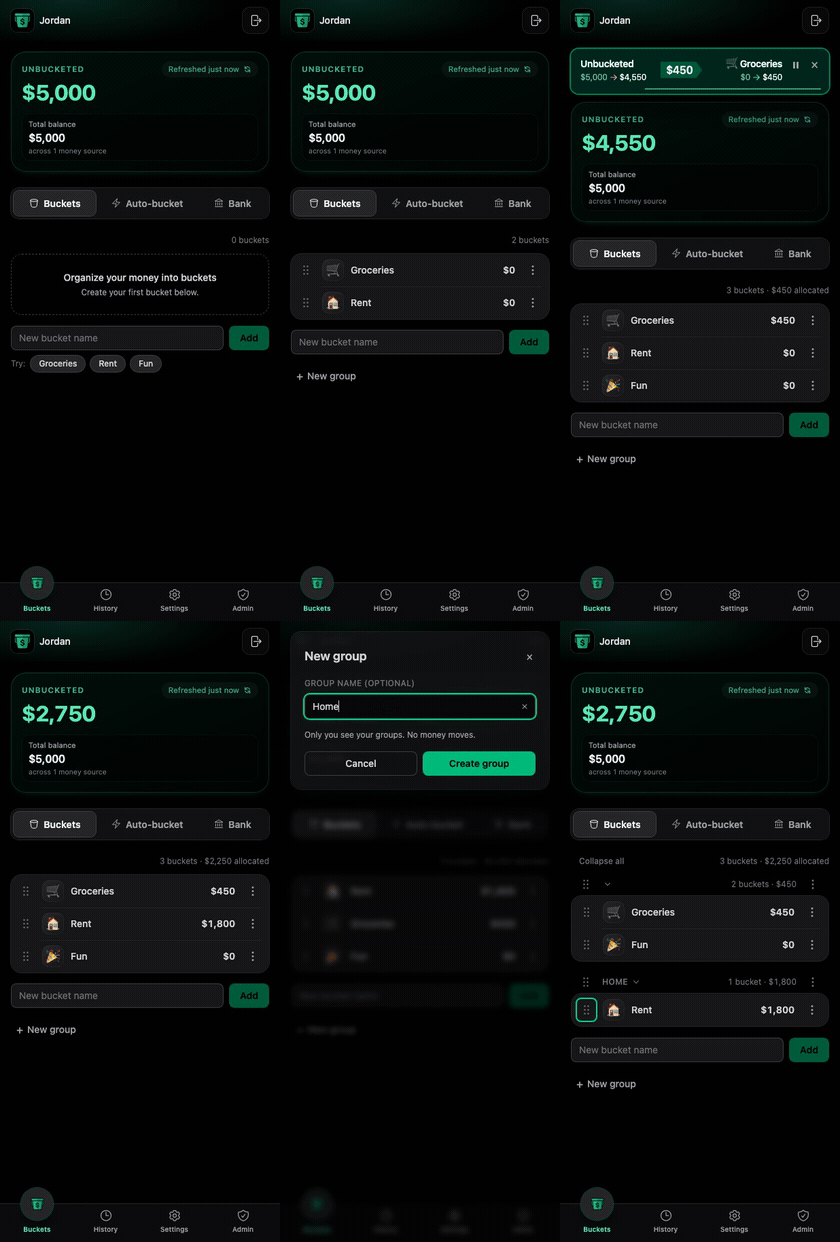
- 1
Connect your accounts
Link checking, savings, and credit cards read-only through SimpleFIN, or type in a balance yourself.
- 2
Bucket what’s spoken for
Rent, groceries, the vacation, the emergency fund. Arrange them in groups like Home and Fun. Whatever you haven’t bucketed sits in Unbucketed.
- 3
Spend, then pick the bucket
Filled up the car? Move that amount from Gas back to Unbucketed. That’s the whole habit.
Credit cards count.
A card balance comes out of Unbucketed as soon as it refreshes, so a swipe can’t hide from your budget. Paying the statement doesn’t move the number. You already covered that spending.
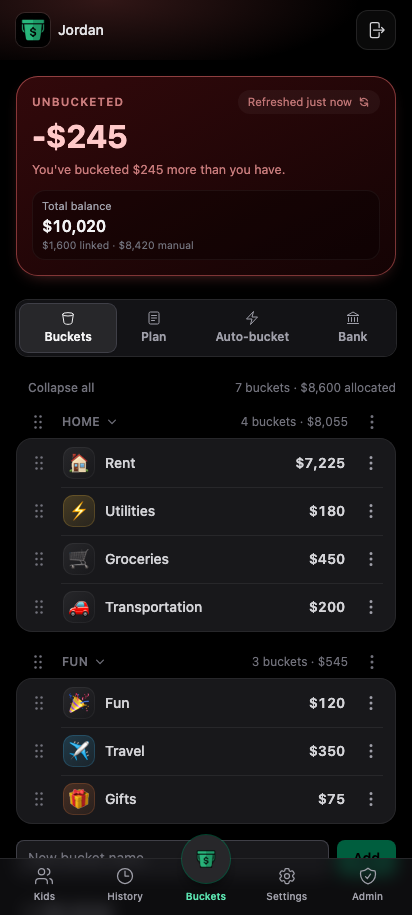
Red means decide.
When your buckets and card balances add up to more than your cash, Unbucketed turns red. Nothing rebalances behind your back. You choose which bucket gives.
Plan every paycheck to zero.
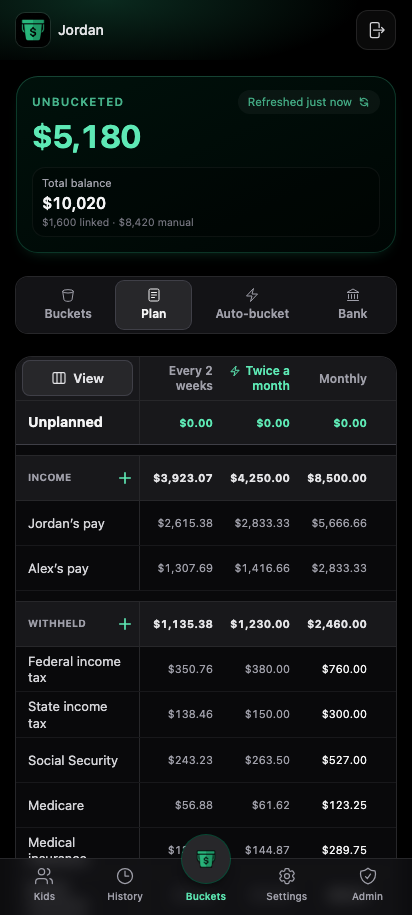
Lay out your pay the way it really arrives: what you earn, what’s withheld, the bills, then your buckets. Keep going until Unplanned reads $0.00, and every dollar has a job before it lands.
- In whatever rhythm you’re paid
- Weekly, every two weeks, twice a month, monthly, or yearly, side by side. Type a line in whichever column fits, and the rest is exact math to the cent.
- Paydays follow the plan
- Link it to an Auto-bucket rule, and each payday sets aside exactly what the plan says. Change the plan, and the next run follows.
- Agreed on together
- Partners see the same plan on their own phones, and every change shows up live. A notes section keeps the rest: what’s on autopay, where the papers are.
Not another spending tracker.
No tagging every coffee. No pie charts. No end-of-month reconciling. Bucket My Money tells you where your money stands today, so you decide on facts, not feelings.
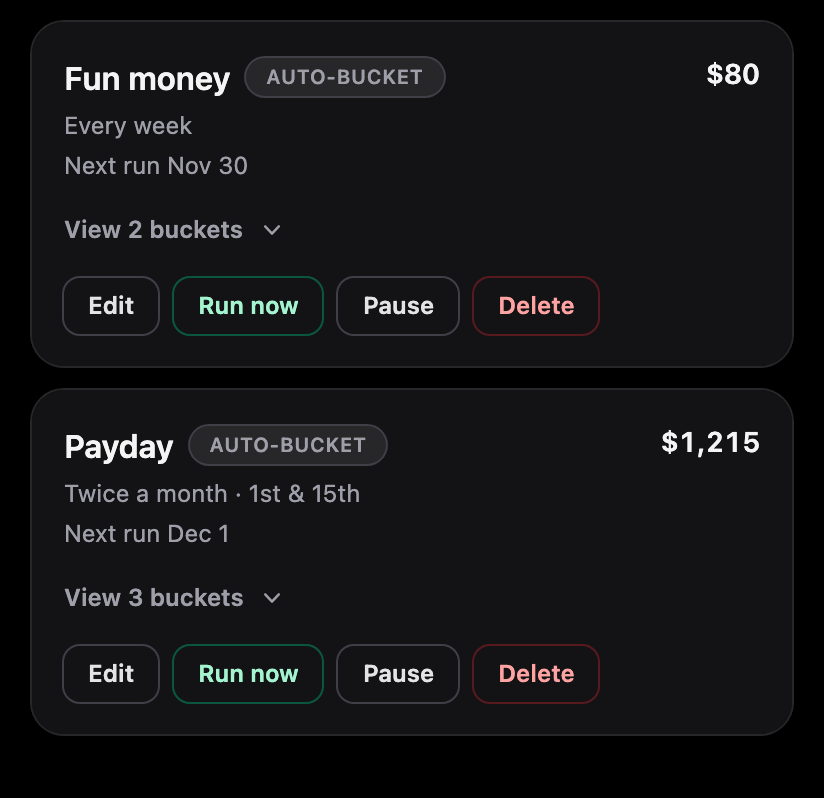
Auto-bucket the routine
Fill buckets on a schedule (weekly, every two weeks, twice a month, or monthly) or run a rule whenever you want. Link one rule to your plan and it follows the plan’s amounts.
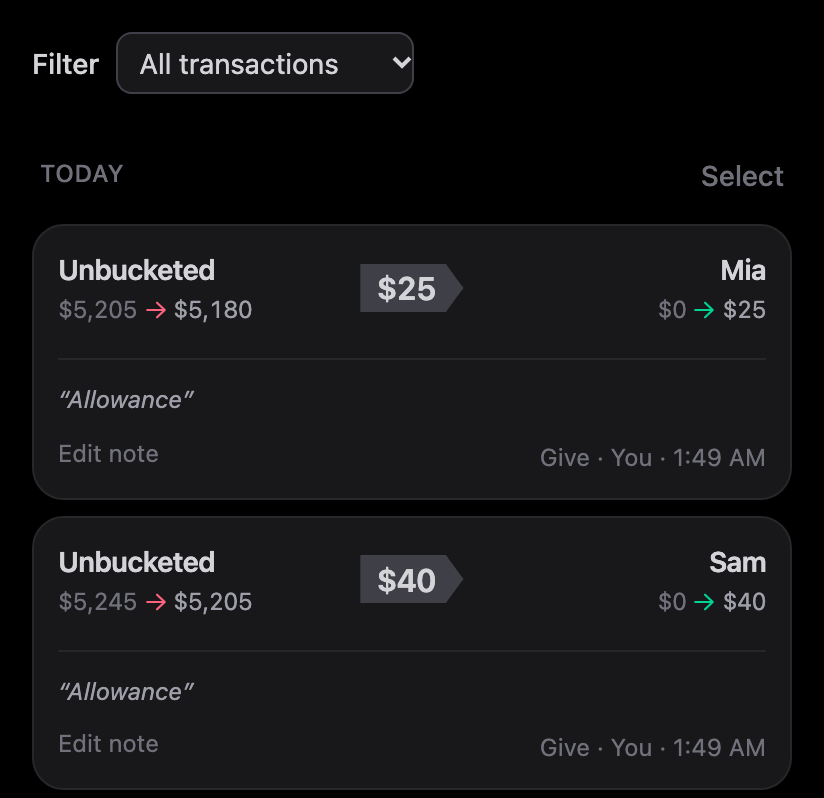
Every move on the record
History shows every move between buckets and every give, with notes, for everyone who should see it.
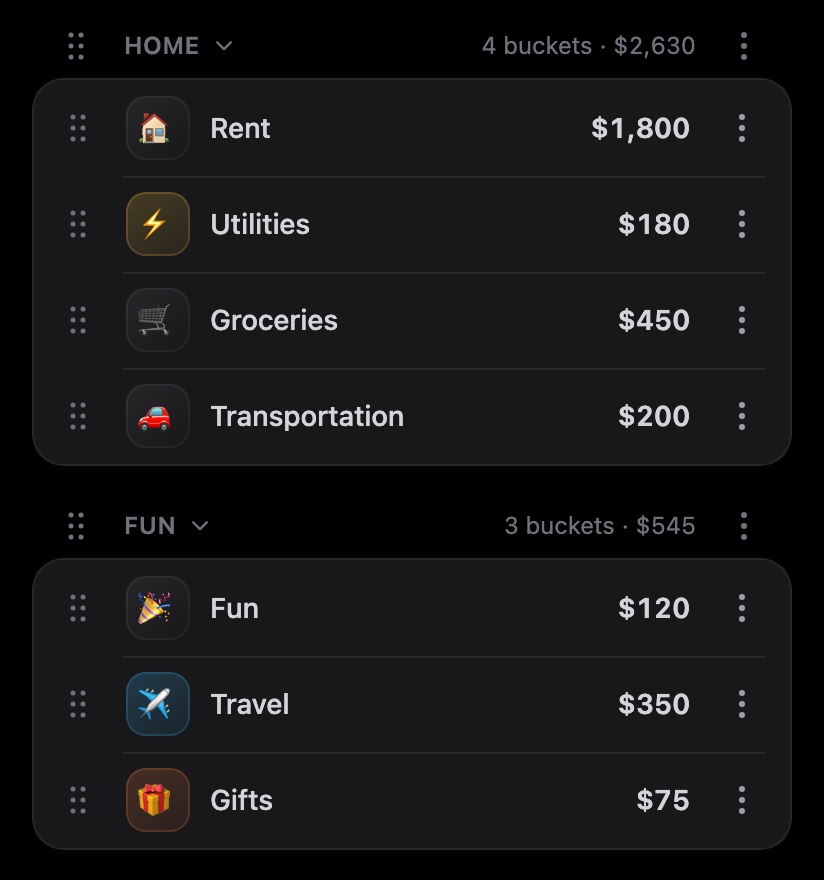
Arrange it your way
Group buckets into Home, Fun, or whatever fits your life. It’s your layout, and nobody else sees it.
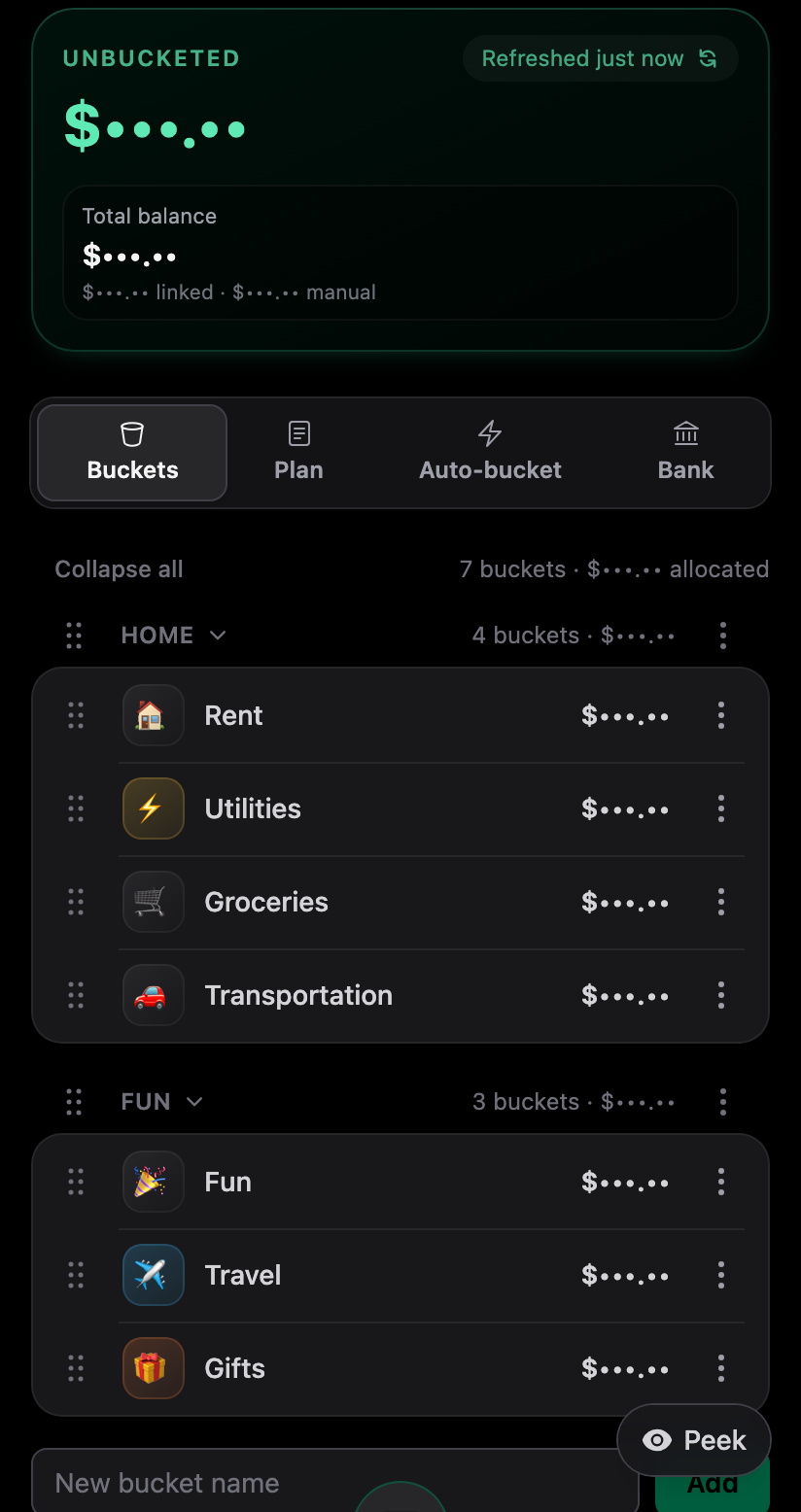
Private in public
Switch on Hide amounts in Settings and every balance turns to dots, so a glance over your shoulder shows nothing. Hold Peek when you need a look.
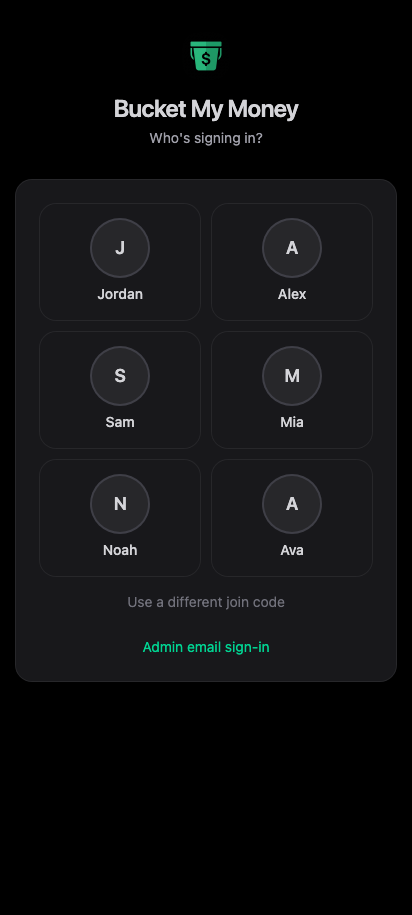
Built for one. Ready for the whole house.
- One number for the household
- Partners share Unbucketed and the household buckets, so you’re both looking at the same truth.
- Kids get their own
- Each kid gets their own sign-in, buckets, and balance, and sees nothing else. Give an allowance in the app, or link a bank account for them, even one in your name.
- PIN or Face ID
- Household members link a device with the join code, then sign in with a PIN, or Face ID and Touch ID on their own device.
Questions
How is this different from other budgeting apps?
One glance shows what’s free after your buckets and credit cards are covered. It doesn’t track spending: no categories to tag, no charts to maintain. One small move when you spend keeps that number honest.
Does it help us make a budget?
Yes. The Plan tab lays out your pay from gross to every bucket, until nothing is left unplanned, and can fill your buckets on payday to match. Admins edit it, partners see it, and kids never do.
Do I have to link my bank?
No. Add any account as a manual balance and update it when you like. Link banks later if you want balances to keep themselves current.
How does bank linking work?
Through SimpleFIN Bridge. You set up a SimpleFIN account, connect your banks there, and paste a one-time setup token into Bucket My Money. SimpleFIN charges a small subscription, paid to them directly.
Can Bucket My Money move my money?
No. Bank access is read-only. Buckets are labels on money you already have; moving money between buckets never touches your bank.
Can I sign in with Google?
Yes. Google sign-in is for identity only: we get your name and email, never your Gmail, contacts, or anything else. You can also use an email and password, and add a PIN or Face ID for everyday use.
Do you sell my data or show ads?
No. There are no ads, no analytics or trackers, and your data is never sold or used to train AI. The Privacy Policy lists exactly what we keep and who processes it.
Is there an app to download?
It’s a web app you install from your browser: Add to Home Screen on iPhone, or Install on Android and desktop. It opens full screen like any other app.
Can my partner use it with me?
Yes. You share one Unbucketed number and the household buckets, and each of you signs in on your own.
What can my kids see?
Only their own buckets and balance, never the household’s money or anyone else’s. That’s enforced by the database, not just hidden on screen.
Find out what’s really yours to spend.
Start with a manual balance and link your banks whenever you’re ready.